header 1600

.
  • Home
  • First Steps
    • 1 Start with a Secure Foundation
      • 1.1 Create a Secure Linux Computer
      • 1.2 First Steps after reflashing to Linux
      • 1.3 Create a Secure VPS
      • 1.4 Use Midnight Commander to Change VPS Settings
    • 2 News Website Setup
      • 2.1 Use Hestia to Install Joomla
      • 2.2 Joomla First Steps
      • 2.3 Add Joomla Extensions and Welcome Article
      • 2.4 Helix Template First Steps
    • 3 News Topics and Articles
      • 3.1 Create News Website Topic Categories and Folders
      • 3.2 The Subject Category versus Date Problem
      • 3.3 How to Write and Post News Articles
      • 3.4 Build your Community News Team
  • More Steps
    • 4 News Images
      • 4.1 Use Libre Draw to Create Featured Images
      • 4.2 Manually resize Featured Images
      • 4.3 Add Featured Images to Joomla News Articles
      • 4.4 Automatically Process Featured Images
    • 5 News Menus
      • 5.1 How to Create Menu Item Links
      • 5.2 How to Create Category Menu Items
      • 5.3 How to Create Article Menu Items
      • 5.4 Helix News Main Menu and Mega Menus
    • 6 News Feature Boxes
      • 6.1 Style Custom Modules with Inline CSS
      • 6.2 Style Custom Modules with Internal and External CSS
      • 6.3 Use Preset Classes to Style Custom Modules
      • 6.4 Use Rainbow Presets to Style Custom Modules
  • Final Steps
    • 7 News Page Layouts
      • 7.1 How to Organize and Display News Articles
      • 7.2 Create a Child Template Part 1
      • 7.3 Create a Community News Template Part 2
      • 7.4 Customize our Child Template Layout
    • 8 Comments and Submissions
      • 8.1 Create a Community News Team
      • 8.2 Joomla Access Levels
      • 8.3 Finish and Test our News Member Groups
      • 8.4 Set Up a Reader Comments System
    • 9 News Site Promotion
      • 9.1 Add a Free Email Newsletter
      • 9.2 Create a Community Events Calendar
  • Our Community News Example Website

9 News Site Promotion

In our final chapter, we will review several ways to promote your news website. This chapter includes the following four sections:

9.1 Set up an Email Newsletter

9.2 Create a Community Events Calendar

9.3 News Site Start Up Steps

9.4 News Site Management and Backup processes

9.2 Create a Community Events Calendar

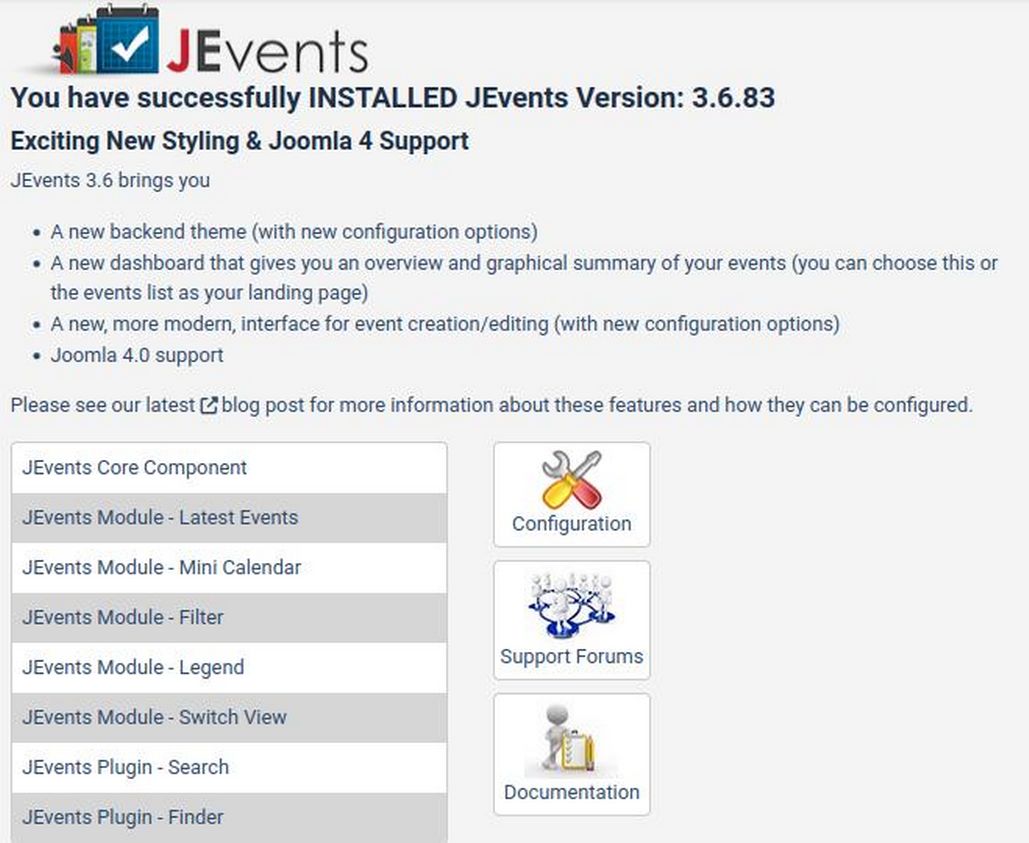
Promoting local community events is one of the best ways to encourage community members to support and visit your community news website. In this article, we will explain how to install and configure the most popular Joomla Events Calendar Extension called Jevents. Download Jevents from this link.
https://extensions.joomla.org/extensions/extension/calendars-a-events/events/jevents/

Then transfer it from your downloads folder to your website extensions folder. Then install it with the normal Joomla installation process.

01

The first step in using Jevents is to review the basic configurations. You can reach these options by clicking on Components, Jevents, Dashboard. The first time you visit your Events Dashboard, it will open in the Configuration Page. You can still reach the Configurations page from the Dashboard in case you need to change anything.

Read more: 9.2 Create a Community Events Calendar

9.1 Add a Free Email Newsletter

Sending email newsletters to folks on your website email list is one of the best ways to keep your community up to date on your latest events. The goal of every newsletter should be a call to action such as clicking on a READ MORE button that goes to a web page with more information. One option for sending newsletters is to use an email sending service like Mail Chimp. However, there are several drawbacks to using these third party services. Some are free initially but can cost a lot as the number of emails sent grows. Even if you can afford the cost, the real drawback is that you are giving your customers data to a third party service. It is much more secure to use a free Joomla email tool and send the emails directly from your own website.

In addition, third party services use shared IP addresses – meaning you may be sharing the same IP with a thousand other websites sending out newsletter – which can result in your emails going to spam folders. However, if you use a VPS with your own dedicated IP address, your emails are less likely to wind up in spam folders because your IP address is more likely to be considered “clean”.

We will therefore learn how to use a free Joomla newsletter tool called BwPostman. There is an instruction manual available for free download from this website. https://www.boldt-webservice.de/index.php/en/joomla-extensions/bwpostman.html

However, this manual is 90 pages long. We will therefore try to provide a shorter summary here.

Here is a summary of the features of BW Postman
#1 You can use either a normal Joomla article for your newsletter (so you can post the article on your website as well as sending it as a newsletter) or make a custom newsletter that is not a Joomla article.

#2 Newsletters can be personalized with the user’s name.

#3 You can create as many mailing lists or groups of email recipients or subscribers as you want.

#4 Newsletters are generated in both HTML and Text formats. This means you can create and use your own custom email HTML templates. In addition, BW Postman comes with default templates and a very easy template creation system.

#5 You can import or export subscribers from a CSV­ or XML ­file or any email address book. ­

#6 You can archive subscribers, newsletters, mailing lists, campaigns and templates and restore or copy them from the archive.

#7 You can include attachments with your emails.

#8 You can set how many emails will be sent at once.

#9 There is a fully functioning newsletter subscription module as well as a module for monthly overview of newsletters. All styles can be over ridden with custom CSS styles.

#10 Webmaster or another person may be informed per mail at each confirmation or un­subscription.

#11 Comes with free captcha tool to reduce subscriptions by robots with a simple math task or as user defined question, adjustable in settings. So there is no need to use a Google captcha (which would data mine your site and your members).

Read more: 9.1 Add a Free Email Newsletter
  • Home
  • First Steps
    • 1 Start with a Secure Foundation
      • 1.1 Create a Secure Linux Computer
      • 1.2 First Steps after reflashing to Linux
      • 1.3 Create a Secure VPS
      • 1.4 Use Midnight Commander to Change VPS Settings
    • 2 News Website Setup
      • 2.1 Use Hestia to Install Joomla
      • 2.2 Joomla First Steps
      • 2.3 Add Joomla Extensions and Welcome Article
      • 2.4 Helix Template First Steps
    • 3 News Topics and Articles
      • 3.1 Create News Website Topic Categories and Folders
      • 3.2 The Subject Category versus Date Problem
      • 3.3 How to Write and Post News Articles
      • 3.4 Build your Community News Team
  • More Steps
    • 4 News Images
      • 4.1 Use Libre Draw to Create Featured Images
      • 4.2 Manually resize Featured Images
      • 4.3 Add Featured Images to Joomla News Articles
      • 4.4 Automatically Process Featured Images
    • 5 News Menus
      • 5.1 How to Create Menu Item Links
      • 5.2 How to Create Category Menu Items
      • 5.3 How to Create Article Menu Items
      • 5.4 Helix News Main Menu and Mega Menus
    • 6 News Feature Boxes
      • 6.1 Style Custom Modules with Inline CSS
      • 6.2 Style Custom Modules with Internal and External CSS
      • 6.3 Use Preset Classes to Style Custom Modules
      • 6.4 Use Rainbow Presets to Style Custom Modules
  • Final Steps
    • 7 News Page Layouts
      • 7.1 How to Organize and Display News Articles
      • 7.2 Create a Child Template Part 1
      • 7.3 Create a Community News Template Part 2
      • 7.4 Customize our Child Template Layout
    • 8 Comments and Submissions
      • 8.1 Create a Community News Team
      • 8.2 Joomla Access Levels
      • 8.3 Finish and Test our News Member Groups
      • 8.4 Set Up a Reader Comments System
    • 9 News Site Promotion
      • 9.1 Add a Free Email Newsletter
      • 9.2 Create a Community Events Calendar
  • Our Community News Example Website