header 1600

.
  • Home
  • First Steps
    • 1 Start with a Secure Foundation
      • 1.1 Create a Secure Linux Computer
      • 1.2 First Steps after reflashing to Linux
      • 1.3 Create a Secure VPS
      • 1.4 Use Midnight Commander to Change VPS Settings
    • 2 News Website Setup
      • 2.1 Use Hestia to Install Joomla
      • 2.2 Joomla First Steps
      • 2.3 Add Joomla Extensions and Welcome Article
      • 2.4 Helix Template First Steps
    • 3 News Topics and Articles
      • 3.1 Create News Website Topic Categories and Folders
      • 3.2 The Subject Category versus Date Problem
      • 3.3 How to Write and Post News Articles
      • 3.4 Build your Community News Team
  • More Steps
    • 4 News Images
      • 4.1 Use Libre Draw to Create Featured Images
      • 4.2 Manually resize Featured Images
      • 4.3 Add Featured Images to Joomla News Articles
      • 4.4 Automatically Process Featured Images
    • 5 News Menus
      • 5.1 How to Create Menu Item Links
      • 5.2 How to Create Category Menu Items
      • 5.3 How to Create Article Menu Items
      • 5.4 Helix News Main Menu and Mega Menus
    • 6 News Feature Boxes
      • 6.1 Style Custom Modules with Inline CSS
      • 6.2 Style Custom Modules with Internal and External CSS
      • 6.3 Use Preset Classes to Style Custom Modules
      • 6.4 Use Rainbow Presets to Style Custom Modules
  • Final Steps
    • 7 News Page Layouts
      • 7.1 How to Organize and Display News Articles
      • 7.2 Create a Child Template Part 1
      • 7.3 Create a Community News Template Part 2
      • 7.4 Customize our Child Template Layout
    • 8 Comments and Submissions
      • 8.1 Create a Community News Team
      • 8.2 Joomla Access Levels
      • 8.3 Finish and Test our News Member Groups
      • 8.4 Set Up a Reader Comments System
    • 9 News Site Promotion
      • 9.1 Add a Free Email Newsletter
      • 9.2 Create a Community Events Calendar
  • Our Community News Example Website

4 News Images

In this chapter, we will review one of the most important differences between a news website and a normal Joomla website – namely setting up a system to manage, resize, process and format images used in your articles and page layouts. Here are the four sections of Chapter 4:

4.1 Use Libre Draw to create News Images

4.2 Add Featured Images to each News article

4.3 Manually Resize and Post Featured Images

4.4 Automatically Process Featured Images

4.4 Automatically Process Featured Images

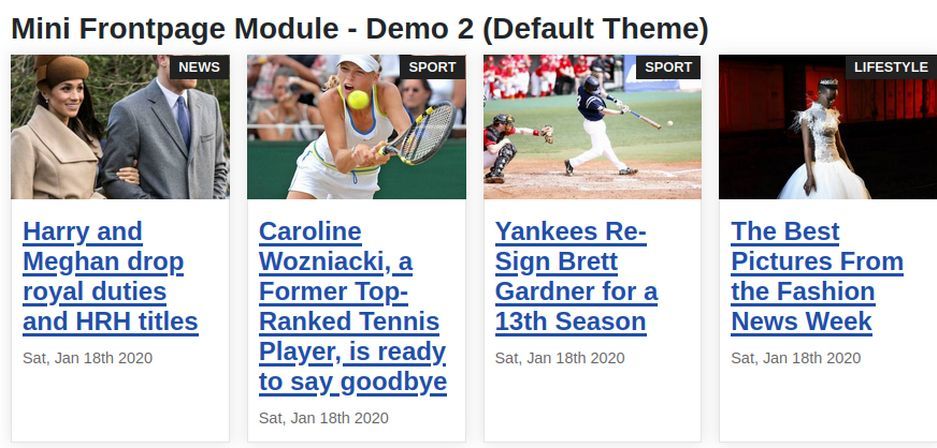
In our previous article, we used a Joomla module called Articles to display the three Latest Articles for our News, Sports, Schools and Business categories. The Joomla Articles module does not offer very many ways to customize the appearance of our Latest News Topic rows. Therefore, in this article, we will review how to download and install a free Joomla extension called Mini Front Page.

Here is the link to Mini Front Page in the Joomla Extensions Directory.

https://extensions.joomla.org/extension/mini-frontpage/

To Download the free version, go to this page:

https://templateplazza.com/joomla-extensions/mini-frontpage

To see a demo of this various ways to display this module, go to this page:

https://demo.templateplazza.com/joomla/index.php/mini-frontpage-module#google_vignette
01

You will need to register. Then download this module. Then move it from your Downloads folder to your website Extensions folder. Then UNZIP the folder to reveal the Joomla 4 version of this extension. Then load the Joomla 4 version of this extension to your Joomla website with Systems, Install, Extensions. This popup will appear:
Read more: 4.4 Automatically Process Featured Images

4.3 Add Featured Images to each Joomla News Article

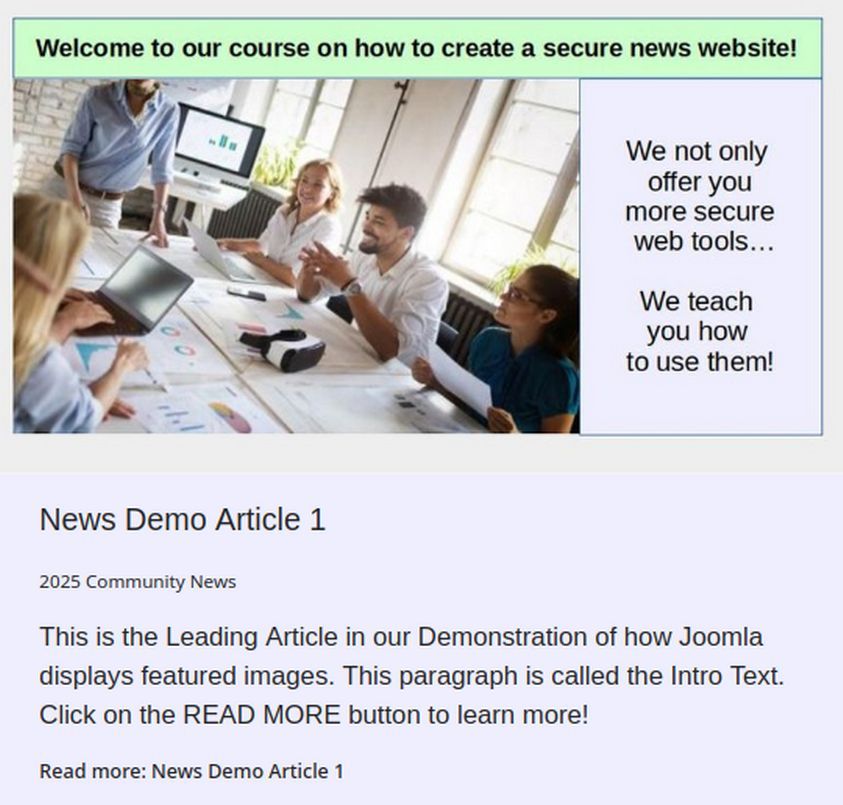
Joomla offers a way to insert special images that are “associated with” rather than being inside of a Joomla article. Joomla calls these special images, “Featured” images. There are two kinds of Featured images. Intro Featured Images are smalled thumbnail images used on our News website Home page and typically include Intro Text and a Read More button which when clicked on takes us to the Full Article. Full Article Featured images are bigger images that are displayed on the Full Article page. In our previous articles, we have used Libre Draw to create our Featured Images and used Gthumb to resize these images. In this article, we will review how to add both types of featured images to a Joomla News article.

To better understand what we are trying to accomplish in this article, here is what “Intro” Featured Images with a width of 800 pixels and height of 450 pixels look like in a Single Column Leading article layout:

01

Click on the image, title or Read More text to go to the Full article.

Read more: 4.3 Add Featured Images to each Joomla News Article

4.2 Manually resize Featured Images

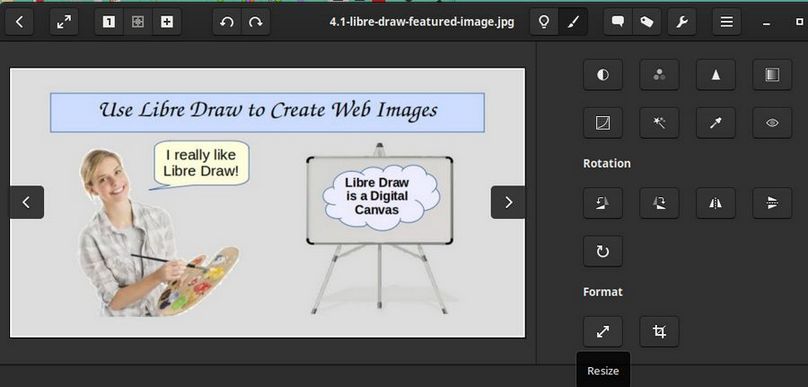
In our last article, we used Libre Draw to create a couple of Featured Images. In this article, we will use an image editor called Gthumb to quickly resize these images to create versions that are 800, 400 and 200 pixels wide.

Use Gthumb to resize and then crop your Image
Open the Gthumb image editor (available from the Debian Software Center if it is not already installed) and then select and open your featured image file. Click on the Edit Icon (paint brush) in the upper right corner.

01

Then click on the Resize button in the lower right corner.

02

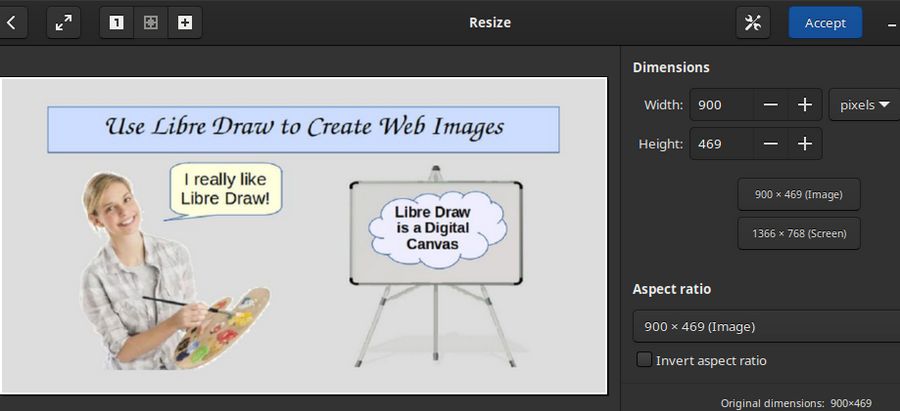
The original image is 900 wide by 469 high. We want the image to be exactly 800 wide by 450 high. Click on the Height Minus sign to bring the height down to 450 High. The width is still 864. Click Accept. Then click on the Crop button which is to the right of the Resize button and click Maximize:

Read more: 4.2 Manually resize Featured Images

4.1 Use Libre Draw to Create Featured Images

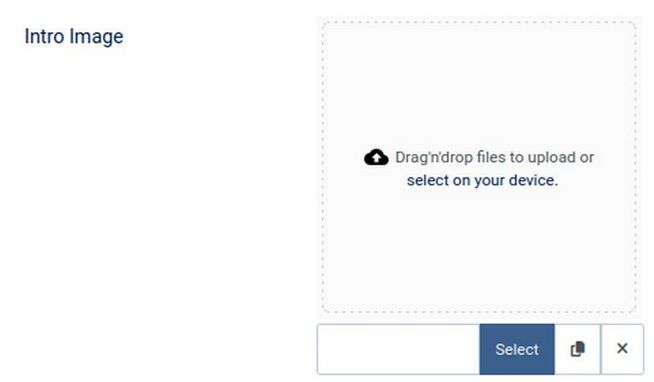
In this article, we will review how to use Libre Draw to create “Featured images” for your Community News articles. Each article on your Community News website should include what Joomla called a “Featured” Image. The Featured Image is used not only at the top of the article page, but also on our Community News Home page as the Leading Article Image and/or as the Intro Article image. A Featured article image is assigned to each News article when you create your News Article by clicking on the Images and Links tab in the Article Edit screen. Here you will see buttons to assign an Intro Image and a Full Article Image:

01

We first need to go to Content, Media and load the Featured Images into on of our images topic folders. Then when creating our news article, we click on the Images and Links tab. Then click on the Blue Select button to select the image we want to use for our Intro Image for this article. Then scroll down and click on the second Blue Select button to select the image we want to use for our Full Article image. To maintain the consistency of our News Page Layout, it is important that all Intro Images have the same width and height and that all Full Article images have the same width and height.

Read more: 4.1 Use Libre Draw to Create Featured Images
  • Home
  • First Steps
    • 1 Start with a Secure Foundation
      • 1.1 Create a Secure Linux Computer
      • 1.2 First Steps after reflashing to Linux
      • 1.3 Create a Secure VPS
      • 1.4 Use Midnight Commander to Change VPS Settings
    • 2 News Website Setup
      • 2.1 Use Hestia to Install Joomla
      • 2.2 Joomla First Steps
      • 2.3 Add Joomla Extensions and Welcome Article
      • 2.4 Helix Template First Steps
    • 3 News Topics and Articles
      • 3.1 Create News Website Topic Categories and Folders
      • 3.2 The Subject Category versus Date Problem
      • 3.3 How to Write and Post News Articles
      • 3.4 Build your Community News Team
  • More Steps
    • 4 News Images
      • 4.1 Use Libre Draw to Create Featured Images
      • 4.2 Manually resize Featured Images
      • 4.3 Add Featured Images to Joomla News Articles
      • 4.4 Automatically Process Featured Images
    • 5 News Menus
      • 5.1 How to Create Menu Item Links
      • 5.2 How to Create Category Menu Items
      • 5.3 How to Create Article Menu Items
      • 5.4 Helix News Main Menu and Mega Menus
    • 6 News Feature Boxes
      • 6.1 Style Custom Modules with Inline CSS
      • 6.2 Style Custom Modules with Internal and External CSS
      • 6.3 Use Preset Classes to Style Custom Modules
      • 6.4 Use Rainbow Presets to Style Custom Modules
  • Final Steps
    • 7 News Page Layouts
      • 7.1 How to Organize and Display News Articles
      • 7.2 Create a Child Template Part 1
      • 7.3 Create a Community News Template Part 2
      • 7.4 Customize our Child Template Layout
    • 8 Comments and Submissions
      • 8.1 Create a Community News Team
      • 8.2 Joomla Access Levels
      • 8.3 Finish and Test our News Member Groups
      • 8.4 Set Up a Reader Comments System
    • 9 News Site Promotion
      • 9.1 Add a Free Email Newsletter
      • 9.2 Create a Community Events Calendar
  • Our Community News Example Website